
Unity Video Player: How to know if the video has finished playing
Tracking Video Playback Completion in Unity: Best Methods Explained
Introduction
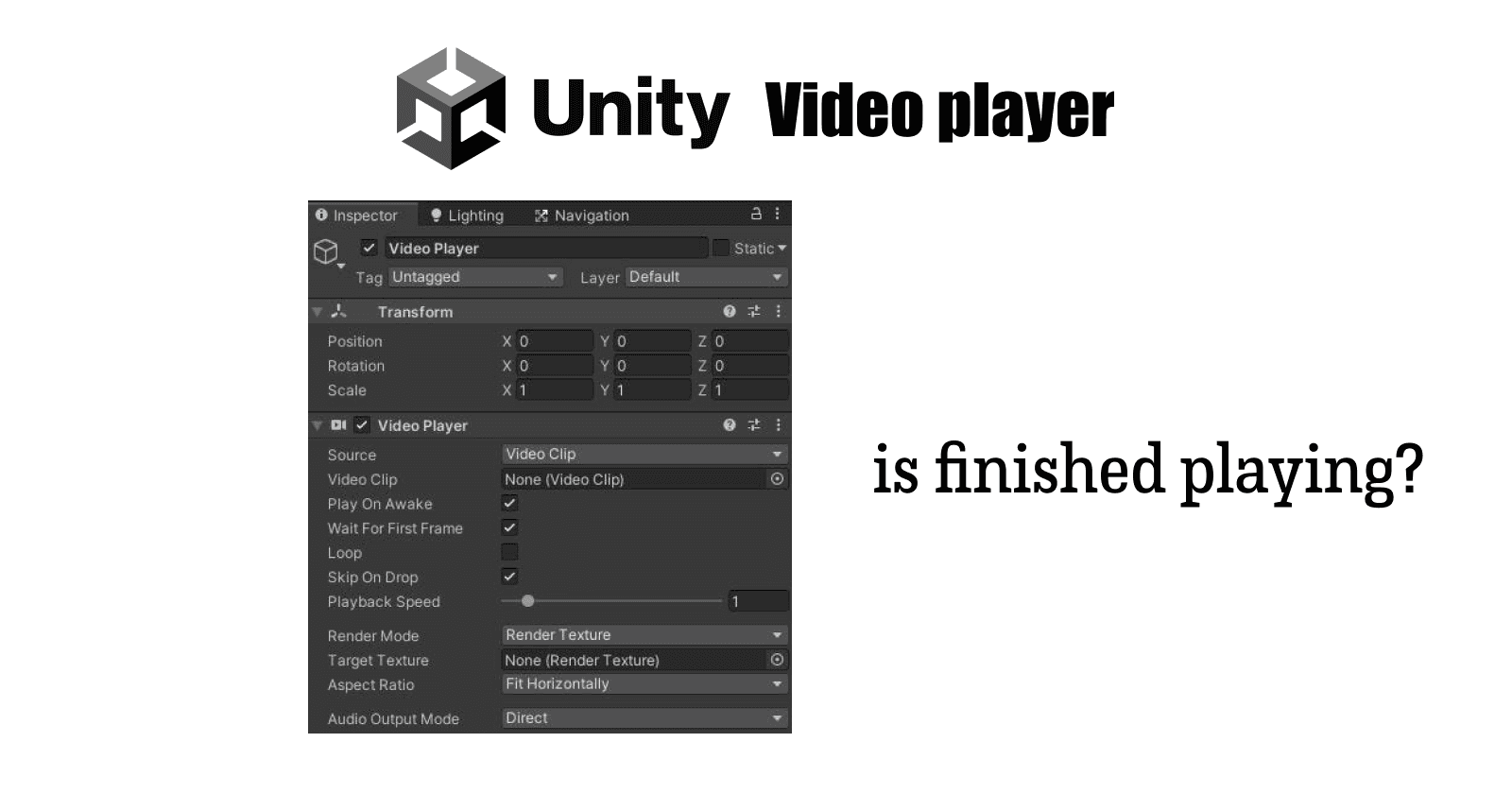
Unity Engine has a special component for playing a video file during runtime. It’s called Video Player. It works by attaching the Video file to the GameObjects and play them on that GameObject’s Texture at run time.
How to use Video Player
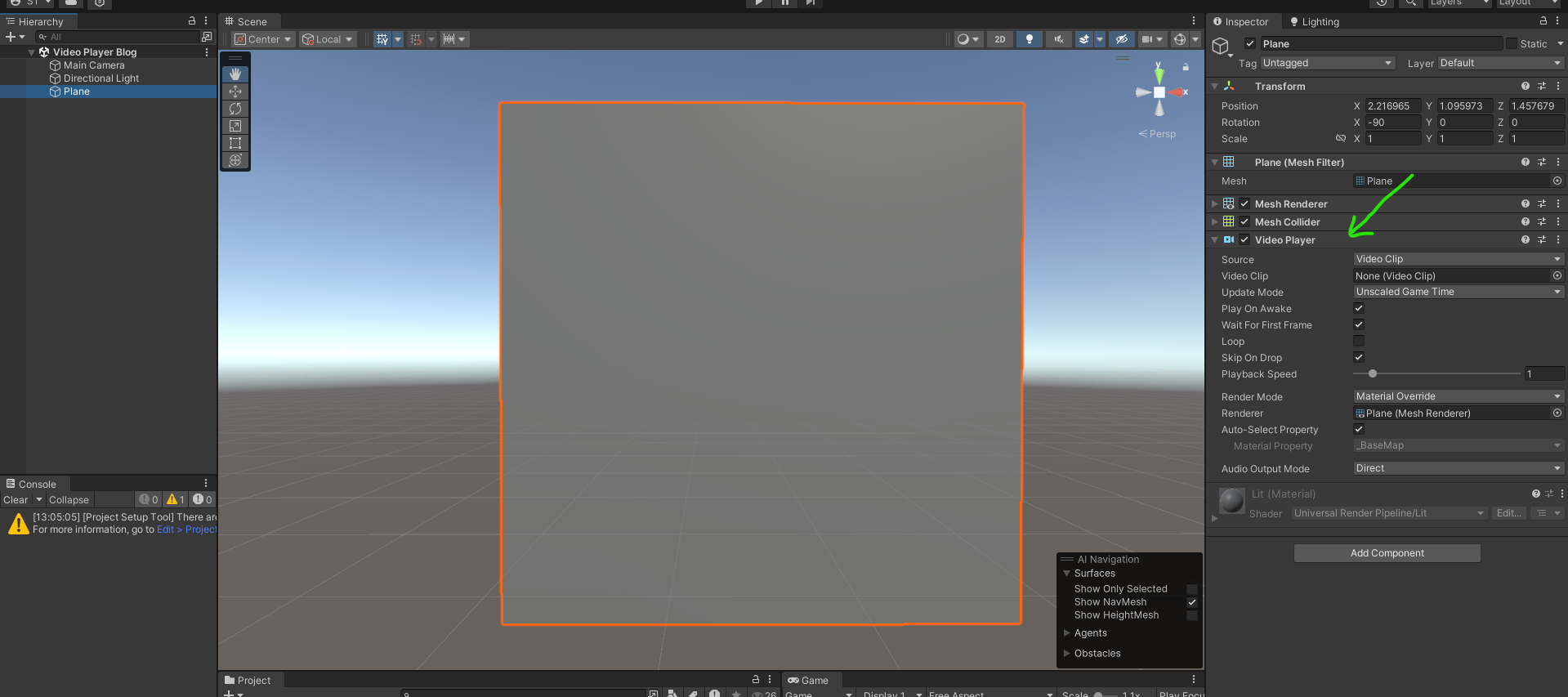
To achieve what’s shown on the screenshot above;
Create a GameObject on the hierarchy by right clicking on it and select the object you want ( I chose plane),
Then on the inspector column (at your far right, if you didn’t change the default editor layout) click add component and search for Video Player.
REMEMBER: The GameObject you select must have a texture on it, as per our definition.
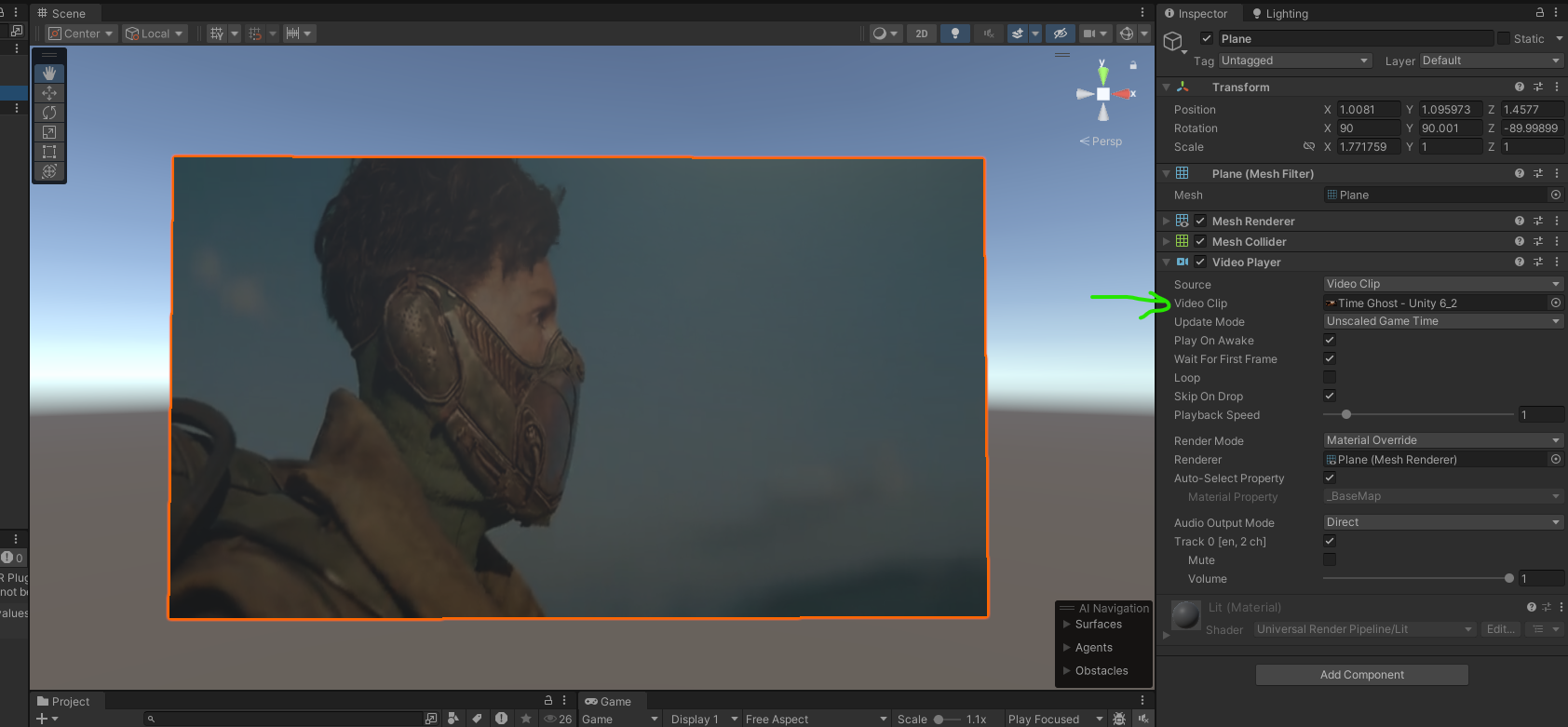
Now, drag your video file to the Video clip property on the Video player component.
Click play to watch your video, Easy right!
NB: The above example uses the default texture of the gameobject, there are more ways to specify the texture depending on your scenario, but I won’t cover them today!
Why will you want to know the video has finished play
In one or more scenarios, you may want part of your app to be aware when a certain video has finished playing. just to mention a few;
Transition to Another Scene or Event: You might want to transition to a new scene, trigger an animation, or load new content once the video is done. For example, after an intro video plays, you could switch to the main menu.
Display User Interface (UI): When a video ends, you could bring up buttons or menus, such as a "Replay" button, or options for the player to proceed to the next level or restart
Tutorials or Guides: After a tutorial video finishes, you may want to unlock a new feature, prompt users with the next instruction, or trigger the next step in a learning sequence.
and many more..
At the moment of writing, there’s no direct indicator in the Inspector to know when a video has finished, you will have to create a custom script for it.
How to do it.
There are a few quick ways to do it;
By Using Video Player Event called
loopPointReached. An Event Invoked when the Video Player reaches the end of the content to play. (Recommended Way)using UnityEngine; using UnityEngine.Video; public class VideoEndCheck : MonoBehaviour { public VideoPlayer videoPlayer; void Start() { videoPlayer.loopPointReached += OnVideoEnd; } void OnVideoEnd(VideoPlayer vp) { Debug.Log("Video has finished playing!"); // You can add any action you want to take here. } }
Script Breakdown
We created a public variable of type
VideoPlayerto allow us assign aVideoPlayercomponent from the Unity Editor to the script.In the Start Method, we registered Our method
OnVideoEndas an event handler for theloopPointReachedevent of theVideoPlayer. Basically it means,“Hey unity when you trigger the event loopPointReached for this video player, please call our method OnVideoEnd()”
We then define our Method where you can do what you wanted when the video ends.
Must I include the parameters in the method?
Absolutely YES, why?;
Event Structure: The
loopPointReachedevent passes aVideoPlayerparameter, so the event handler (OnVideoEnd) must match that expected signature, meaning it should take aVideoPlayerparameter.Accessing the VideoPlayer: Inside the event handler, you might need to interact with the specific
VideoPlayerinstance that finished playing, such as for pausing, restarting, or querying its state. Thevpargument provides a way to do that.Scalability: If you are handling multiple
VideoPlayerinstances in a scene, you can differentiate which one triggered the event by referencingvp. Without this parameter, the event would be less flexible for more complex scenarios.
By comparing between
videoPlayer.frameCountandvideoPlayer.frameproperties.using UnityEngine; using UnityEngine.Video; public class VideoFrameCheck : MonoBehaviour { public VideoPlayer videoPlayer; void Update() { // Check if the current frame is the last frame of the video if (videoPlayer.frame >= (long)(videoPlayer.frameCount - 1)) { Debug.Log("Video has finished playing!"); // Add any other action you want to take here. } } }How it works:
videoPlayer.frameCountgives the total number of frames in the video.videoPlayer.frameprovides the current frame the video player is on.When the current frame (
videoPlayer.frame) reaches or exceeds the total number of frames minus one (videoPlayer.frameCount - 1), it means the video has finished.We subtract 1 from
videoPlayer.frameCountbecause frames in Unity are zero-indexed. This means that the first frame of the video is frame 0, and the last frame isframeCount - 1. If a video has, for example, 100 frames, they are indexed from 0 to 99.
Using
isPlayingProperty to check if the video has stopped playing.
This means we need to check the video player if its still playing the video or not every time (every frame).
  using UnityEngine;
  using UnityEngine.Video;

  public class VideoCheckIsPlaying : MonoBehaviour
  {
      public VideoPlayer videoPlayer;

      void Update()
      {
          if (!videoPlayer.isPlaying)
          {
              Debug.Log("Video has finished playing!");
              // You can add any action you want to take here.
          }
      }
  }
We put our block of code for checking the status in the Update() method because it gets called every frame.
Conclusion.
Which one is the best way then!?
The most recommended approach is using the event (
loopPointReached). This is because it is event-driven, meaning it only triggers when the video ends, making it efficient and avoiding unnecessary checks every frame.The second best option is checking the frame count, which provides precise control by allowing you to directly compare the current frame with the total frame count of the video. However, this requires additional computation and frame checks in every
Update()cycle, which can be very expensive in terms of performanceLastly, using
isPlayingis the least recommended as it only checks if the video is currently playing. It doesn't differentiate between the video ending or being paused, so it may require extra conditions to accurately detect the video's completion.
References.
https://discussions.unity.com/t/how-to-know-video-player-is-finished-playing-video/671347/3
https://docs.unity3d.com/ScriptReference/Video.VideoPlayer.html